Step-by-step guide to configuring InRouter300 Series routers with a Telnyx SIM for reliable IoT and industrial… See Telnyx guidance and requirements.
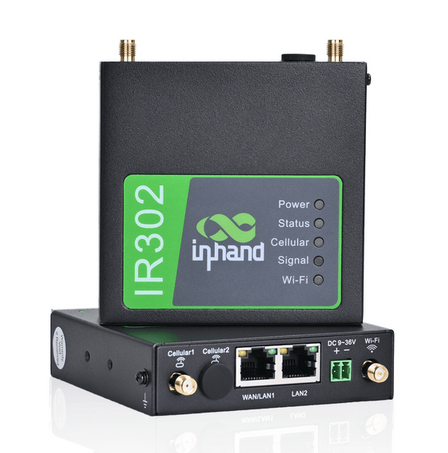
The InRouter300 Series (IR300) from InHand Networks is a reliable and robust industrial 4G LTE router designed for IoT, industrial automation, and remote networking applications. This guide provides step-by-step instructions to configure the IR300 Series Cellular Router with a Telnyx SIM card, ensuring seamless connectivity.
1. Prerequisites
Before starting the configuration, ensure you have the following:
-
InRouter300 Series Router (e.g., IR302)
-
Active Telnyx SIM Card with a valid data plan
-
Computer or Laptop with an Ethernet port
-
Ethernet Cable to connect the router
-
Power Adapter for the router
-
Default Router Credentials:
- IP Address:
http://192.168.2.1 - Username:
adm - Password:
123456(default, unless changed)
- IP Address:
2. Physical Setup
- Insert the Telnyx SIM card into the SIM slot of the IR300 router.
- Connect your computer to the LAN port of the router using an Ethernet cable.
- Power on the router and wait for it to boot up completely.
- Open a web browser and enter
http://192.168.2.1in the address bar. - Log in using the default credentials (
adm/123456).
3. Configuring the Cellular Network with Telnyx APN
3.1 Navigate to Cellular Settings
- After logging in, go to Network > Cellular.
- Locate the SIM Profiles section.
3.2 Configure APN Settings for Telnyx
-
Select SIM Slot 1 (or SIM Slot 2 if using a secondary SIM).
-
Enter the following APN settings:
- APN:
data00.telnyx - Username: (Leave blank)
- Password: (Leave blank)
- APN:
-
Click Apply to save the changes.
3.3 Enable Dual SIM Setup (Optional)
If using a dual SIM setup for redundancy:
- Enable Dual SIM Mode.
- Configure the second SIM card with the appropriate APN settings for its carrier.
- Set Failover Mode to ensure automatic switching in case of connection failure.
4. Verifying Connectivity
- Navigate to Status > Network Connection.
- Check if the router has obtained an IP address from the Telnyx network.
- Ensure the Signal Strength and Network Registration status indicate a successful connection.
- Test connectivity by opening a website or pinging an external server.
5. Additional Configuration (Optional)
5.1 Setting Up Static IP Address
If Telnyx provides a static IP, configure it under Network > WAN Settings:
- Change the Connection Type to
Static IP. - Enter the provided IP Address, Subnet Mask, and Gateway.
- Click Apply and restart the router.
5.2 Enabling VPN for Secure Communication
For enhanced security, configure VPN settings under VPN > Settings:
- Select a VPN protocol (IPSec, OpenVPN, or PPTP).
- Enter authentication details from your VPN provider.
- Save the settings and establish the VPN connection.
5.3 Configuring Firewall Rules
To enhance security:
- Navigate to Security > Firewall.
- Enable firewall protection and configure custom rules to allow/block specific traffic.
- Save and apply changes.
6. Backing Up Configuration for Future Use
Once the router is fully configured, it is recommended to create a backup:
- Navigate to System > Config Management.
- Click Backup to generate a
.datconfiguration file. - Save the file for future use or deployment on additional routers.
To restore settings on another router:
- Go to System > Config Management.
- Click Browse, select the
.datfile. - Click Import and restart the router.
7. Troubleshooting Common Issues
7.1 No Internet Connectivity
- Ensure the Telnyx SIM card is active and has a valid data plan.
- Double-check the APN settings (
data00.telnyxwith no username/password). - Restart the router and check Status > Network Connection.
- Try inserting the SIM into another device to verify its functionality.
7.2 Poor Signal Strength
- Reposition the router to an area with better reception.
- Attach an external 4G LTE antenna if available.
7.3 Configuration Not Saving
- Ensure changes are Applied and Saved before rebooting the router.
- Try resetting the router to factory settings and reconfigure from scratch.
By following this guide, you can successfully configure your InRouter300 Series Cellular Router with a Telnyx SIM card for reliable and secure internet connectivity. The setup ensures optimal performance, redundancy, and security for industrial and IoT applications.
Happy Networking! 🚀