This guide explains how to manually connect WhatsApp Calling to Telnyx. Configure the Meta SIP connection first, then follow the section for the call direction you need:
- Receive user-initiated calls: WhatsApp users call your business.
- Place business-initiated calls: your business calls WhatsApp users through a Telnyx Programmable Voice application.
For the automated setup through the Telnyx Mission Control Portal (MCP), see Enabling WhatsApp Business Calling on Telnyx and BYON Numbers. For the account and number setup steps, see How to Set Up WhatsApp on Telnyx.
Before you begin
Have access to your business phone number in WhatsApp Manager and the Meta App ID for its WhatsApp integration.
- To receive calls, have a Telnyx Programmable Voice application or SIP connection with a configured SIP subdomain.
- To place calls, have a Telnyx Programmable Voice application, its Telnyx API key, and the recipient’s WhatsApp calling approval. The outbound section explains how to obtain the Meta access token and SIP credentials.
Configure the Meta SIP connection
If calling and SIP are already configured for your business number, keep the existing configuration and continue to the call-direction section below. For outbound calls, use the existing SIP hostname in the From address.
The manual setup uses the format <subdomain>.sip.telnyx.com, where <subdomain> matches the subdomain already configured for your Telnyx application or SIP connection. Have that subdomain ready before following the steps below.
1. Open WhatsApp Manager
Go to WhatsApp Manager and select the business account that contains your phone number.
2. Open the phone number call settings
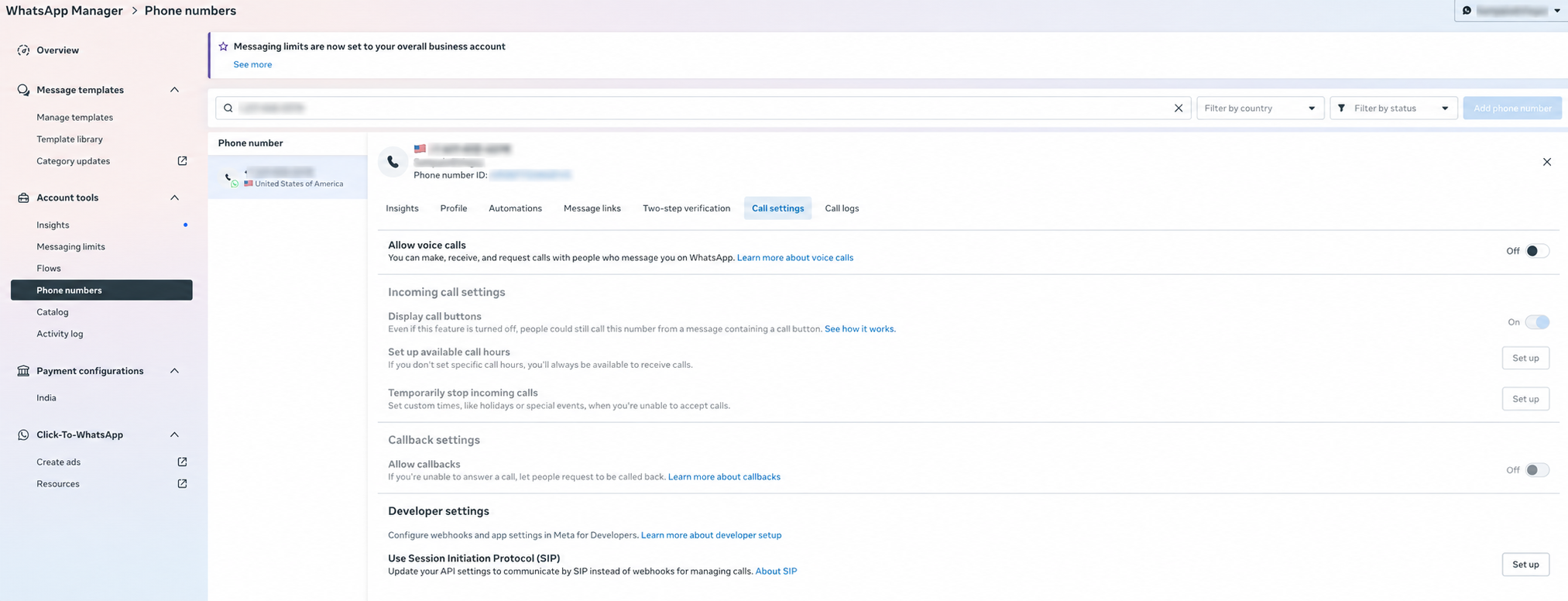
Select the phone number you want to edit, then click Call settings.
3. Edit the SIP connection
Under Developer settings, find Use Session Initiation Protocol (SIP) and click the pencil icon to edit the connection. If the section shows Set up instead, click Set up.
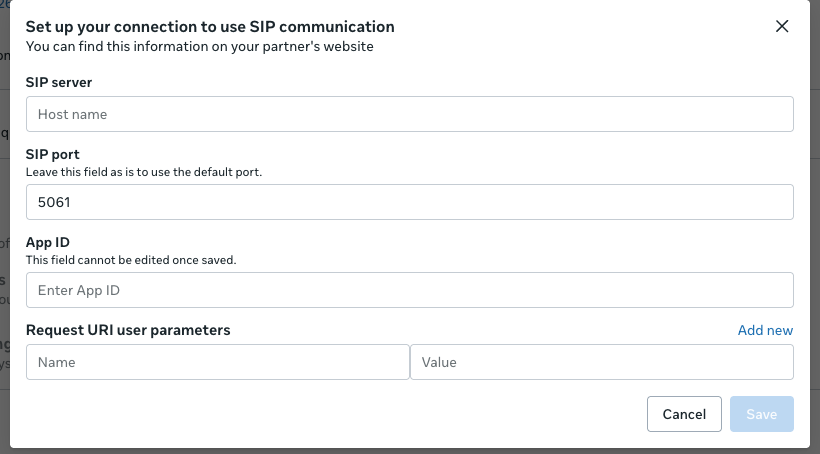
The Set up your connection to use SIP communication dialog opens.
4. Enter your Telnyx SIP server
In SIP server, enter:
<subdomain>.sip.telnyx.com
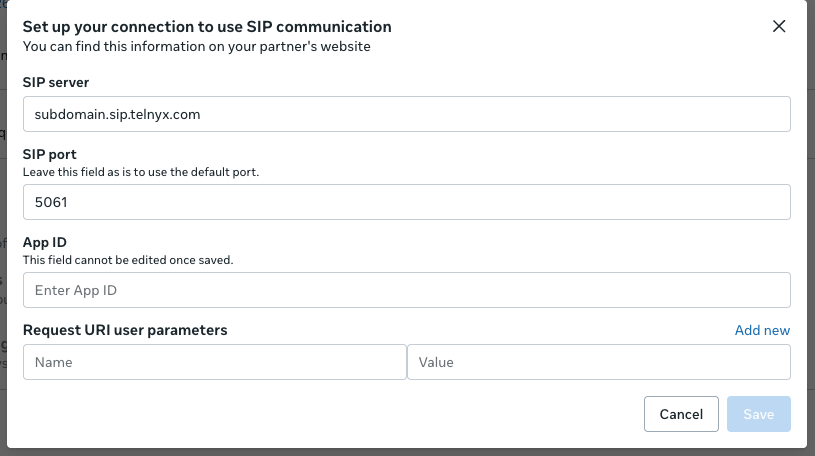
Replace <subdomain> with the subdomain configured for your Telnyx Programmable Voice application or SIP connection. For example, if your configured subdomain is support, enter support.sip.telnyx.com.
Enter only the hostname, without https:// or the angle brackets. The value subdomain.sip.telnyx.com in the screenshot is an example; replace it with your own hostname.
5. Enter the Meta App ID and save
In App ID, enter the Meta App ID for the app used by your WhatsApp integration. You can find it in your app dashboard in Meta for Developers. This is separate from your Telnyx application ID, WhatsApp Business Account ID, and phone number ID.
Check the App ID carefully before saving. As indicated in the dialog, this field cannot be edited once saved.
Click Save to apply the change. Reopen the SIP connection settings and confirm that SIP server shows your intended hostname.
Receive user-initiated calls
Configure the Telnyx application or SIP connection associated with the subdomain configured in Meta to accept incoming SIP subdomain calls.
- In the Telnyx Mission Control Portal, open the relevant application or SIP connection.
- Go to Connection Settings → Authentication and routing.
- Set Receive SIP Subdomain calls to From Anyone.
- Save your changes.
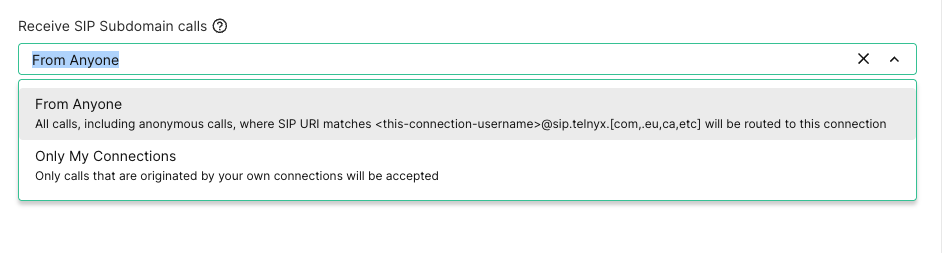
Select From Anyone so your application or SIP connection can receive WhatsApp calls from Meta. This setting accepts calls to the configured SIP subdomain, including anonymous calls.
After saving, place a test call from WhatsApp to your business number. Confirm that it reaches the intended Telnyx application or SIP connection and that audio works in both directions.
Place business-initiated calls
Your business can call a WhatsApp user by dialing Meta's SIP endpoint from a Telnyx Programmable Voice application. Calling and SIP must be enabled for your business number in Meta, and the recipient must have granted your business permission to call them. Meta's eligibility restrictions also apply; see business-initiated calling requirements.
Obtain a Meta access token
For a manual setup or test, use Meta Graph API Explorer:
- Sign in with a Meta developer account that has access to the WhatsApp Business Account and phone number. If necessary, complete developer registration and create an app with the WhatsApp use case in Meta for Developers.
- In Graph API Explorer, select your app under Meta App.
- Under Add a Permission, select
whatsapp_business_management. - Click Generate Access Token and complete any authorization prompts for the relevant business account.
- Use the resulting Access Token as
YOUR_META_ACCESS_TOKENin the request below.
This token authorizes the settings request; it is not the SIP password. Treat it as a secret and do not put it in the request URL. Explorer user tokens are suitable for testing; for a production integration, follow Meta's Business Management API setup and system user token guidance.
Retrieve the Meta SIP password
Use the full URL below to retrieve your business number's SIP credentials:
https://graph.facebook.com/v26.0/{PHONE_NUMBER_ID}/settings?include_sip_credentials=true
Replace {PHONE_NUMBER_ID} with Meta's phone number ID, shown in WhatsApp Manager. This is different from the business phone number, WhatsApp Business Account ID, and Telnyx application ID. Use a supported Graph API version for your integration; this example uses v26.0.
curl --request GET \
  --url 'https://graph.facebook.com/v26.0/{PHONE_NUMBER_ID}/settings?include_sip_credentials=true' \
  --header 'Authorization: Bearer YOUR_META_ACCESS_TOKEN'
Use an authorized Meta access token with whatsapp_business_management permission for the number. Signing into WhatsApp Manager alone does not supply this API token.
In the response, find the matching entry under calling.sip.servers:
- SIP username: your business phone number's international digits, without
+. - SIP password: the entry's
sip_user_passwordvalue. - SIP hostname: the entry's
hostnamevalue. Use this exact hostname in the call's From address.
Keep the password private. These are Meta SIP credentials, separate from your Telnyx API key and Telnyx SIP connection credentials. You do not need to change the existing SIP app association merely to try the authorized settings request.
Dial the WhatsApp user
Send a Telnyx Dial request using your existing Programmable Voice application. Replace all placeholders below:
curl --request POST \
  --url 'https://api.telnyx.com/v2/calls' \
  --header 'Authorization: Bearer YOUR_TELNYX_API_KEY' \
  --header 'Content-Type: application/json' \
  --data '{
    "connection_id": "YOUR_VOICE_APPLICATION_ID",
    "to": "sip:+RECIPIENT_E164_DIGITS@wa.meta.vc:5061;transport=tls",
    "from": "sip:+BUSINESS_E164_DIGITS@YOUR_META_CONFIGURED_SIP_HOSTNAME",
    "sip_auth_username": "BUSINESS_E164_DIGITS",
    "sip_auth_password": "META_GENERATED_SIP_PASSWORD",
    "sip_transport_protocol": "TLS",
    "media_encryption": "DTLS",
    "preferred_codecs": "OPUS",
    "timeout_secs": 20,
    "time_limit_secs": 30,
    "send_silence_when_idle": true
  }'
The to address uses the recipient's WhatsApp number. The from address and authentication username identify your business number. For example, if Meta shows support.sip.telnyx.com as the configured hostname, use sip:+BUSINESS_E164_DIGITS@support.sip.telnyx.com for from.
The example uses TLS signaling and Opus with DTLS-encrypted media. If the number's Meta configuration uses SDES, set media_encryption to "SRTP" instead. The call is limited to 30 seconds for testing; adjust this limit for your application.
Telnyx sends the INVITE to wa.meta.vc and uses the supplied Meta credentials to respond to Meta's authentication challenge. No SIP REGISTER step is required. Configure your application to handle call events and provide audio after answer.
Confirm the result
An HTTP 200 response means Telnyx accepted the Dial request; it does not prove that the recipient answered. Check the call events for call.answered or call.hangup, then verify audio in both directions on an answered call.
If the attempt ends with SIP 403 and No Approved Call Permission Found, the recipient has not granted the business permission to call them. Obtain approval using Meta's user calling permission flow before retrying. Skipping a permission lookup does not bypass Meta's approval requirement.