Learn how to configure BuddyTalk BT110 to work with Telnyx to make and receive calls. See Telnyx guidance and requirements.
BuddyTalk, powered by the Amazon Alexa Voice Service (AVS) and Alexa Communication (ACM), is an intelligent speakerphone and smartspeaker which can be configured to allow a VoIP subscription to deliver incoming and outgoing calls. BuddyTalk is equipped with advanced audio processing and has VoIP capability, all while delivering fantastic calling flexibility, superior voice quality, and strong security.
| Note: For an even more rich experience with your BuddyTalk BT product, consider the BuddyTalk Mobile App after you have completed this setup. |
Additional documentation:
- BT110 user documentation
- BT120 user documentation
- BT200 user documentation
- BT110 features
- BT120 features
- BT110 specifications
- BT120 specifications
- BuddyTalk FAQs
- BuddyTalk setup page
Instructions for configuring BuddyTalk BT110/120 to work with Telnyx
In this activity you will:
Pre-requisites
-
Ensure that your Telnyx Mission Command Portal is configured properly
-
RECOMMENDED: Enable TLS if you want to encrypt your traffic
-
An Amazon account with Comm. enabled
-
The Alexa app enabled
-
The BuddyTalk Setup App
- Android App: Google Play Store *The App is supported on phones and tablets running Android 4.4.4 and above.
- iOS App: Apple App Store **The Setup App is supported on phones and tablets running iOS version 12 and above.*
-
Appropriate network setup
- Ensure that your firewall is open for SIP communication on port 5060
-
Make sure you can access the BuddyTalk web console
-
See details about BuddyTalk deployment pre-requisites here.
Video Walkthrough
Setting up your Telnyx SIP portal account so you can make and receive calls:
Setting up BuddyTalk through the BuddyTalk Setup App:
| Note: Video walkthrough for BuddyTalk/Telnyx configuration coming soon. Check back as we update our docs. |
1. Set up your BuddyTalk profile
In this step, you will set up your Telnyx account in BuddyTalk.
-
Open your BuddyTalk Setup App and work through the first two setup steps. The BuddyTalk video can also help with this.
-
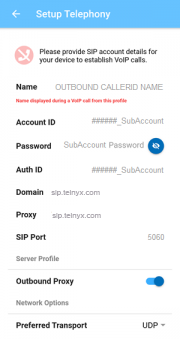
On the third step, you will be taken the Setup Telephony screen. Provide the following information:
-
Name: Enter your outbound Caller ID name. Use the following naming conventions to choose this:
- Caller ID Name should be in capital letters. This will appears more clearly/visible on some devices.
- You must NOT use any special characters, as they will not be displayed. Spaces are allowed.
- Some of regular Canadian providers will not show more than 15 characters. We suggest shrinking or adapt your caller ID.
-
Account ID: Your Telnyx SIP account ID
-
Auth ID: Your Telnyx SIP account ID
-
Password: Your Telnyx SIP account password
-
Domain: sip.telnyx.com
-
Outbound proxy (optional): Toggle this switch to enable outbound proxy
-
Proxy (optional): sip.telnyx.com
-
Local SIP Port: 5060
-
Preferred Transport: UDP (default). Note that if you are planning to encrypt calls and have set up call encryption on your Telnyx portal, you should choose TLS.
-
-
After your SIP registration is complete, you should see the phone icon in the upper left corner turn green. Additionally, the phone LED on top of your device will change from red, to green, before turning off.
2. (OPTIONAL) Encrypt traffic by enabling TLS
In this step, we will configure SIP TLS-SRTP traffic encryption on BuddyTalk, as this is recommended.
-
Log into the BuddyTalk Web Console
-
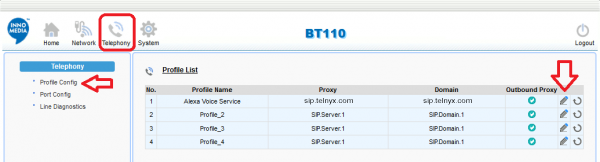
Click on Telephony in the top navigation.
-
In the left-hand menu, click Profile Config.
-
Find the profile you just created and click the edit link (This is the PENCIL icon)
-
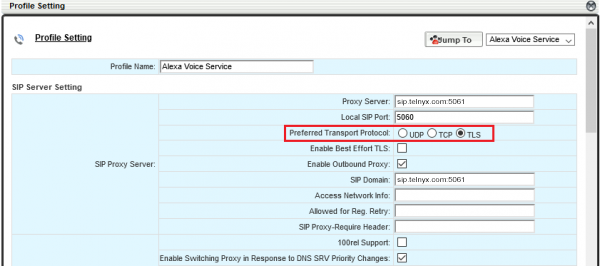
On the Edit screen, find the SIP Proxy Server section.
-
Find the Preferred Transport Protocol field and select TLS.
-
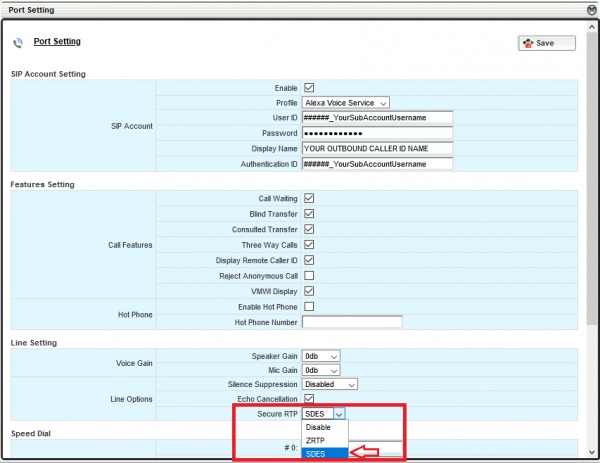
In the left-hand menu, click on Port Config.
-
Find the profile you just created and click the edit link (This is the PENCIL icon)
-
On the Edit screen, find the Line Setting > Line Options section.
-
Find the Secure RTP field and select SDES.
3. Have some fun with Alexa!
Now that you're set up and ready to go, let's learn some useful Alexa voice commands. Start by trying some of these:
- Calling (dialing a number): "Alexa call (some number)"
- Calling (by contact): "Alexa, call (name)"
- Answer a call: "Alexa, answer call."
- Disconnect a call: "Alexa, hang up."
You can also use all your other Alexa skills and commands, even if they're not related to making or managing calls.
That's it! You're all set up to start using BuddyTalk BT with Telnyx.
Additional Resources
Review our getting started with guide to make sure your Telnyx Mission Control Portal account is setup correctly!
Additionally, check out:
- BT110 user documentation
- BT120 user documentation
- BT200 user documentation
- BT110 features
- BT120 features
- BT110 specifications
- BT120 specifications
- BuddyTalk FAQs
- BuddyTalk setup page