Call Recording
Telnyx offers native cloud recording for inbound and outbound calling. This can be set up via the Telnyx Mission Control portal or programmatically with the Telnyx API.
You can configure Telnyx to record inbound or outbound calls or both using the number and outbound profile settings.
Call recording is fully accessible via our API v1 where you can configure settings and find, manage, download, and delete recordings.
Features of Telnyx Call Recording
- MP3 or .WAV file format
- High-quality audio
- Cloud Storage
- Immediately available
- Long term retention
- Time-stamped and searchable
- Single or Dual Channel
How to set up Call Recording on the Telnyx Mission Control Portal
Inbound
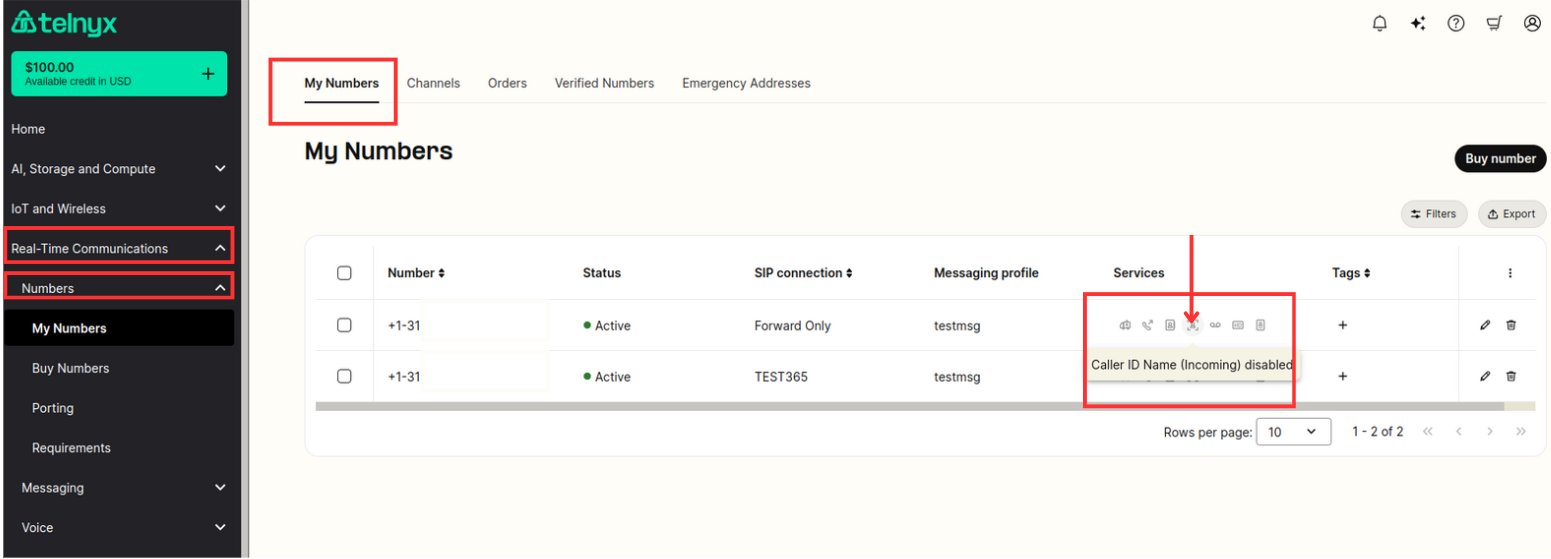
- Go to your numbers section.
- Select the Inbound Call Recording Icon.
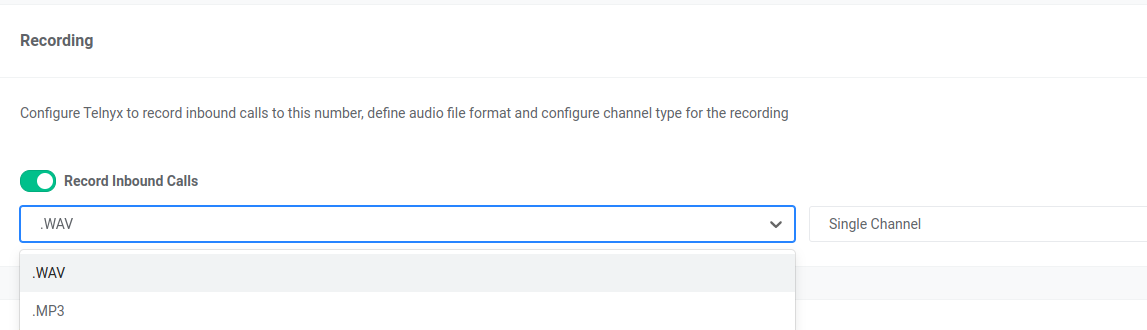
- Turn on Call Recording.
- Select which audio file format you want .wav or .mp3.
- Select which audio file channel type you want single or dual channel.
- Optionally enable Continue recording on hold. See Continue recording on hold below.
- Save your changes.
To set up call recording for inbound calls on a number via the Telnyx API see our developer guide here.
NOTE: This call recording feature, on inbound calls, is recommended only for DID's associated with SIP Trunking Connections.
If your DID is associated with Voice or TeXML applications, please do not enable this feature on the DID as the recordings will not be generated. Instead, use the relevant recording features available at the Voice API or TeXML level.
Outbound

- Go to your outbound voice profiles section.
- Select the outbound voice profile you wish to set the call recording on.
- Scroll down and click on advanced settings.
- Select if you want to enable call recording for all outbound calls or only those outbound calls with a specific ANI (or from number).
- Select which audio file format you want .wav or .mp3.
- Select which audio file channel type you want single or dual channel.
- Optionally enable Continue recording on hold. See Continue recording on hold below.
- Save your changes.
To set up outbound call recording via the Telnyx API see our developer guide here
Continue recording on hold
By default, call recording pauses during hold and resumes when the call is taken off hold, excluding that hold time from the recording. If you want to include hold time, enable Continue recording on hold. This optional setting keeps recording active during hold and is off by default.
Configure this separately for each direction:
-
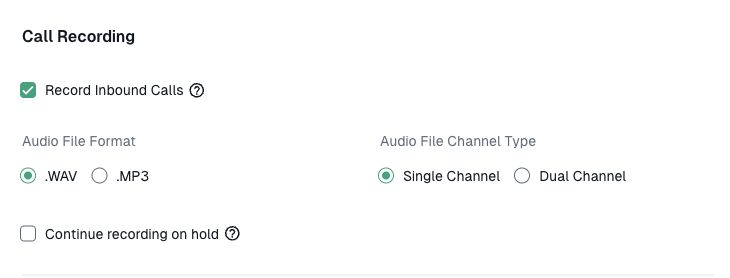
Inbound calls: Open the number's Voice → Services → Call Recording settings. Enable Record Inbound Calls, then select Continue recording on hold and save.
-
Outbound calls: Open the Outbound Voice Profile → Configuration settings. Enable recording for all calls or selected caller numbers, then turn on Continue recording on hold and save.
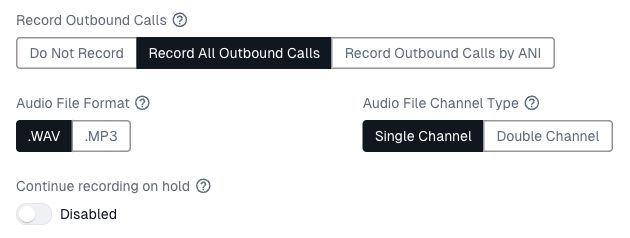
Both screenshots show Continue recording on hold turned off, its default state. Enable it to include hold time in the recording.
This preference does not enable call recording by itself. Turning recording off retains the saved preference; the portal control remains disabled until recording is enabled again.
Note: Hold behavior can vary depending on your phone system and who puts the call on hold. Make a test call and try hold from both ends to confirm the recording behaves as expected.
Configure using the API
For request parameters and examples, see the developer documentation:
- Inbound calls: Update a phone number with voice settings.
- Outbound calls: Update an outbound voice profile.
How to download or delete your call recordings
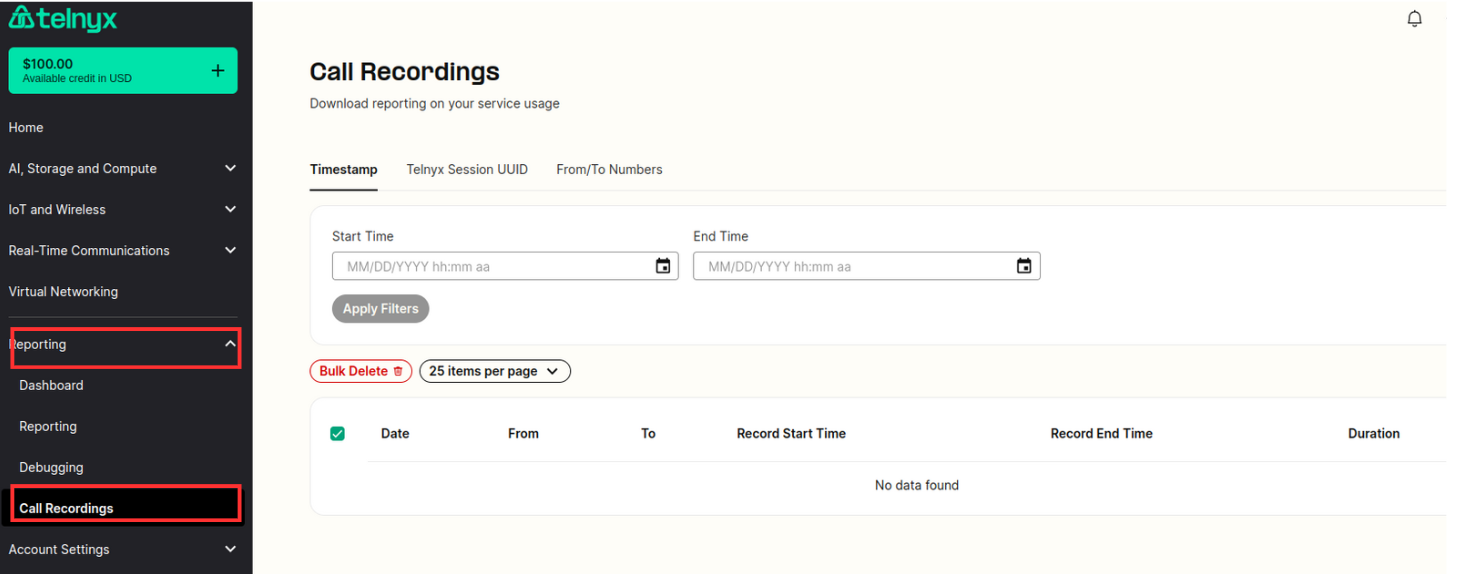
- Go to your reporting section and select recordings.
- Here you will see your most recent recordings.
- You can search by timestamp, Telnyx session UUID, and from/to numbers.
- Select download or delete. (You also have a bulk delete option)
How long are the recordings made available for?
Call Recordings are stored for 1 year if you do not delete them. The 1-year max time may be subject to change. So it's recommended that you acquire any and all recordings you need in a timely manner.
To download or delete a recording via the Telnyx API see our developer guide here.
For pricing information on the Telnyx Call Recording Feature, you can check here.
Related Articles