Easily configure rclone with Telnyx Storage using our step-by-step guide for efficient file transfer and storage… See Telnyx guidance and requirements.
Rclone is a command-line tool for synchronizing files and directories to and from various cloud storage providers, as well as local file systems. It supports common operations such as uploading, downloading, and syncing files, as well as more advanced features such as server-side file modification times, partial syncs, and more.
How to configure rclone to work with Telnyx Storage
Steps:
-
Download and install the latest version of rclone here!
-
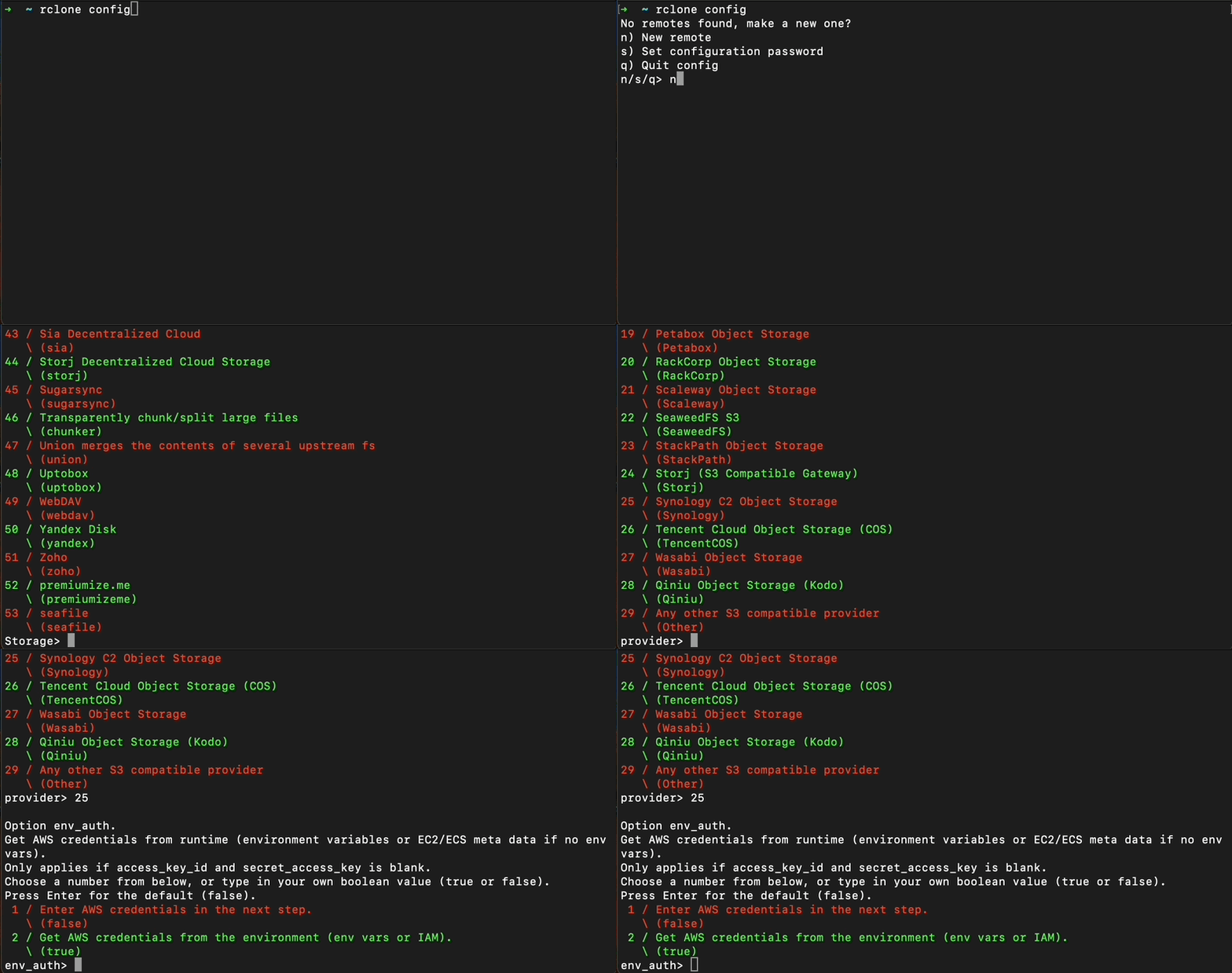
Open your terminal. Run the command rclone config to create a new configuration file for Telnyx Storage
-
For the first prompt, choose option n to create a new remote. Hit “Enter” to continue
-
For "Enter name for new remote", type in any name that you wish! Hit “Enter” to continue
-
For "Option Storage", choose option "4" (Amazon S3 Compliant Storage Providers including AWS, Alibaba, Ceph, …) and hit “Enter” to continue
-
For "Option provider", choose option "34" (Any other S3 compatible provider) and hit “Enter” to continue
-
For "Option env_auth", choose option 1 (Enter AWS credentials in the next step) and hit “Enter” to continue
-
For "Option access_key_id", copy and paste your Telnyx API Key in this field and hit “Enter” to continue
-
For "Option secret_access_key", the secret access key is not used by Telnyx Storage. However rclone will complain if this field is left empty. Type out anything you want here, as long as it doesn't include spaces, quoting, or special characters of any kind.
-
For "Option region", choose option 1 (Will use v4 signatures and an empty region.) and hit “Enter” to continue
-
For "Option endpoint", choose one of our available API Endpoints and hit “Enter” to continue
-
For "Option location_constraint", you can either leave empty and hit “enter”. Or if you can type in one of our available regions and hit “Enter” to continue
-
For "Option acl", choose option 1 (Owner gets full control. No one else has access rights (default).) and hit "Enter" to continue
-
For "Edit advanced config?", type "n" (No (default)) and click “Enter” to continue
-
For "Keep this "{{remote_name}}" remote?", type "y"(Yes this is OK (default)) and hit “Enter” to continue
-
Finally, type "q" and hit “Enter” to quit the config
Additional Resources
For more information on how to use rclone, check out their developer documentation here.