Simplify your cloud storage management by following our guide to configuring S3 Browser with Telnyx Storage. See Telnyx guidance and requirements.
S3 Browser is a graphical user interface for managing files on Amazon S3 and other cloud storage services that implement the S3 API. It provides a simple and intuitive way to upload, download, and manage files, as well as perform advanced operations such as setting object metadata, versioning, and access control policies, all through an easy-to-use interface.
How to configure S3 Browser to work with Telnyx Storage
-
Download and install the latest version of S3 Browser here!
-
Start S3 Browser. If this is your first time using S3 Browser, a window should pop up to
Add New Account. If you have previously used S3 Browser, click onAccountsin the top left corner, and then click onAdd New Account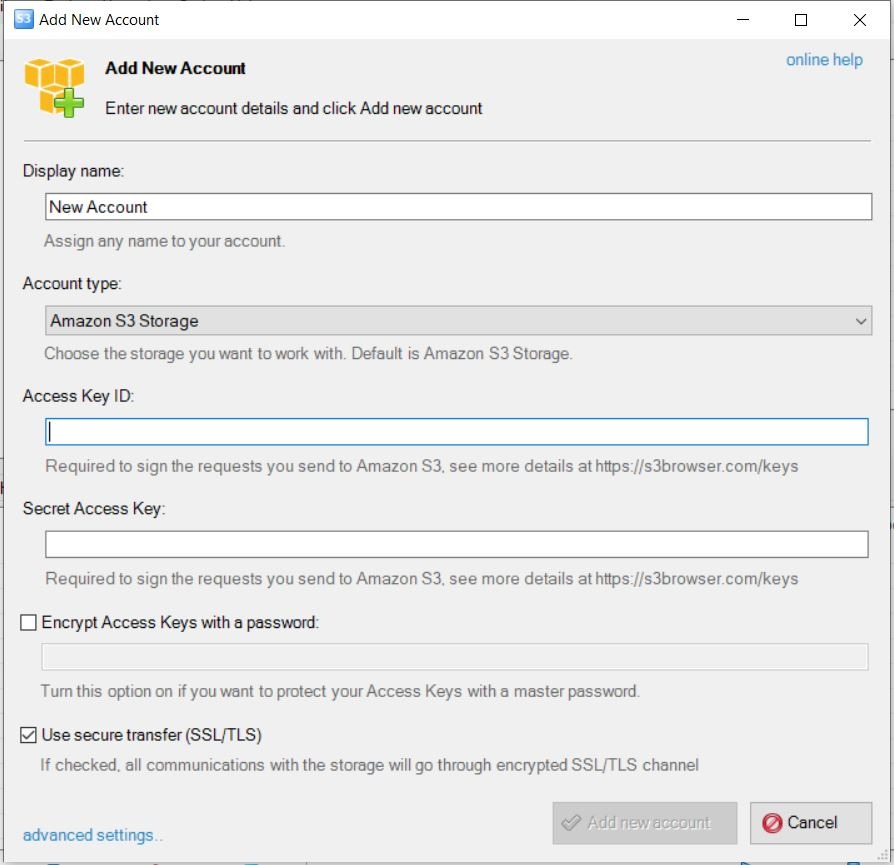
-
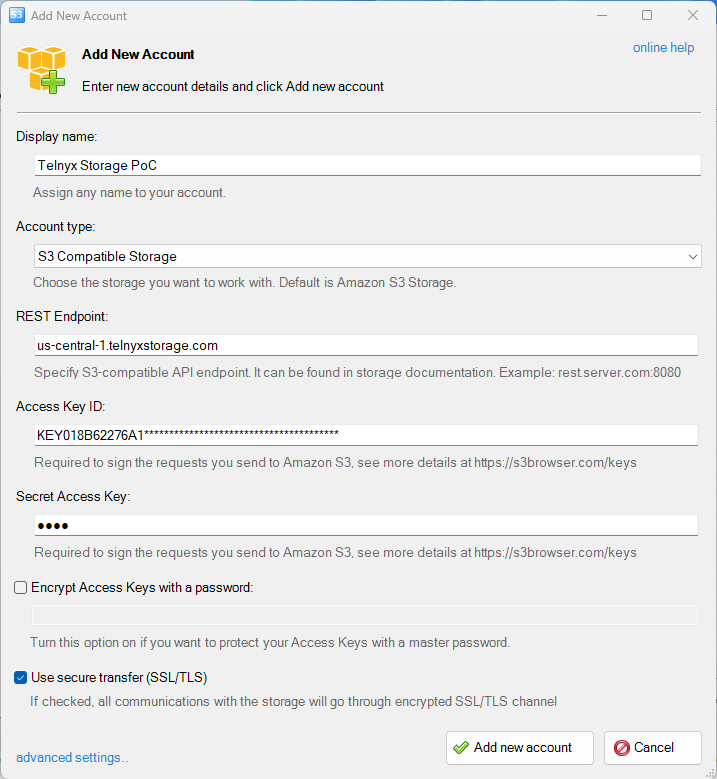
Enter the following information and then click
Add New Accountto create a new account for Telnyx Storage:-
Display Name: Anything you want! Give this connection a name of your choosing
-
Account Type: Select
S3 Compatible Storagefrom the dropdown menu -
REST Endpoint: Copy and paste one of our available API Endpoints.
-
Access Key ID: copy and paste your Telnyx API Key in this field.
-
Secret Access Key: The secret access key is not used by TelnyxStorage, but S3 Browser will complain if it doesn’t exist. Type out anything you want here, as long as it doesn't include spaces, quoting, or special characters of any kind.
-
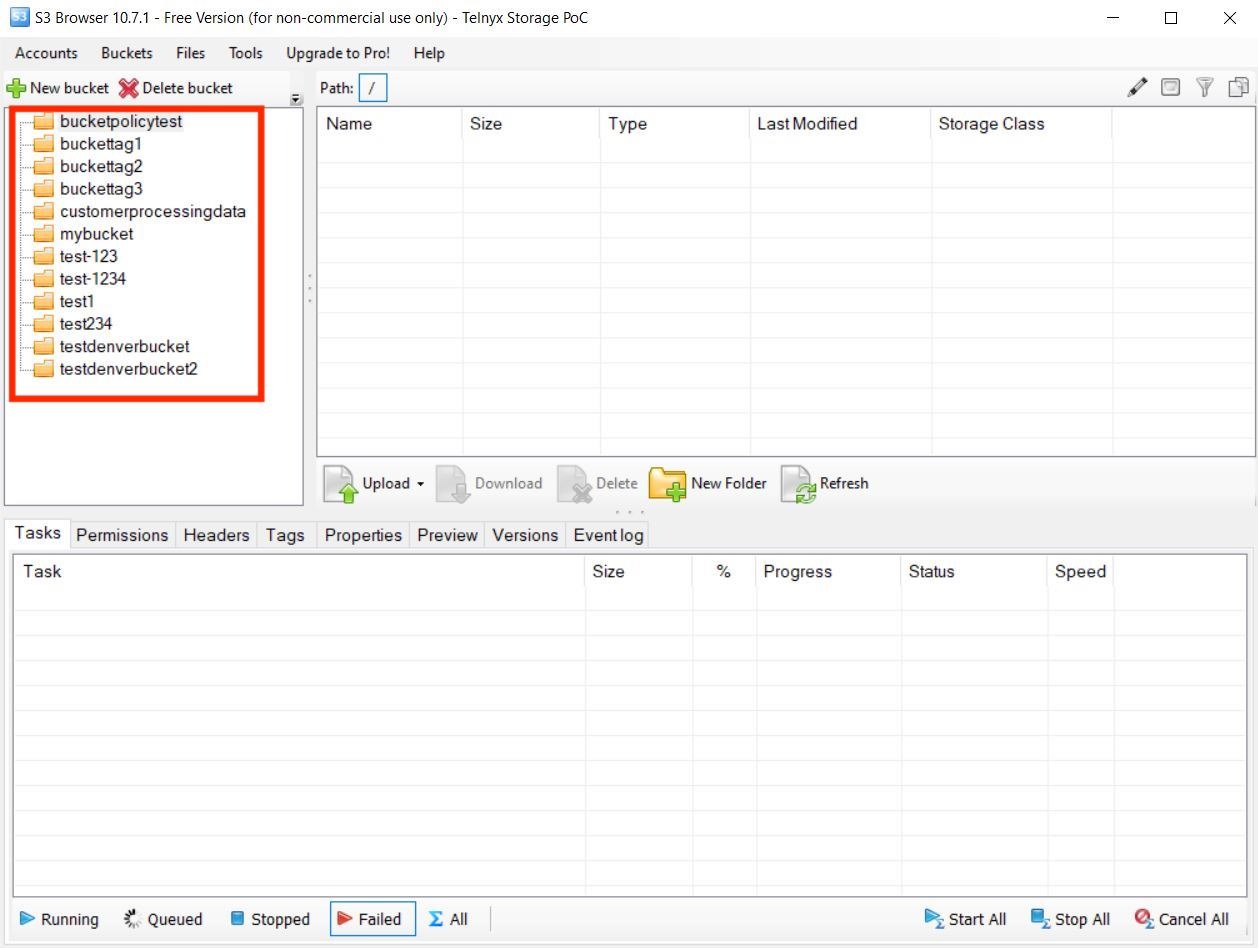
And that’s all there is to it! You are now ready to use S3 Browser with Telnyx Storage to manage your data. If you had previously created buckets, they will appear in the application window (see image below).
Additional Resources
For more information on how to use S3 Browser to manage your data, check out their user guides here.